Guide · Process automation
If your team repeats the same check, synchronization, or report on a regular basis, you do not have to start the process manually each time. A Colba schedule starts a selected active process template at set times. You choose the cadence, timezone, and what should happen if the previous run is still in progress.
The schedule controls when a process starts. The process template still defines what it does: collect data, create tasks for people, request approvals, or use configured integrations.
When to use a schedule
- Run recurring synchronization or checks without asking someone to remember each start.
- Start operational routines such as reporting or reviewing items that need attention.
- Create tasks and reminders automatically on a predictable cadence.
Scheduling works best when the cadence is clear, the process template is ready, and someone owns exceptions. Integrations and input data must be configured in the workflow itself.
Create a schedule
- Open an active process template and its schedules section, or go to the schedules page and choose a template.
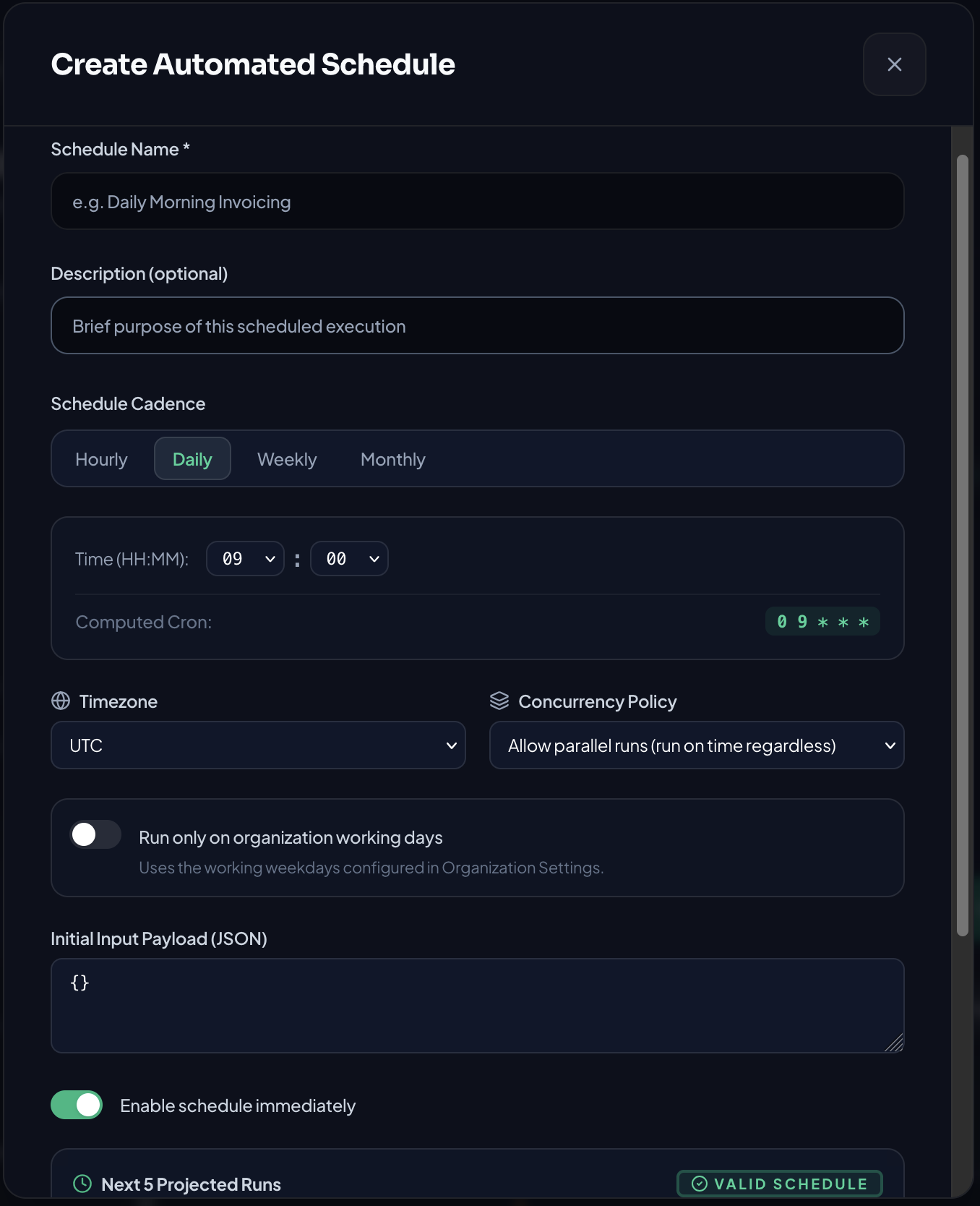
- Select Add Schedule and enter a descriptive name, such as “Morning order sync”.
- Choose a preset cadence: hourly, daily, weekly, or monthly. You can also enter a custom Cron expression.
- Choose a timezone, for example
Europe/Warsaw. Scheduled times follow that timezone, including daylight saving time changes. - Optionally enable runs only on your organization’s working days. This uses the working days configured in organization settings.
- Choose the concurrency policy, provide any initial input data, and decide whether to enable the schedule immediately.
- Review the preview of the next five runs, then save if the times match your calendar.
Cron examples
A custom Cron expression has five fields: minute, hour, day of month, month, day of week. For example:
0 9 * * 1-5— every weekday at 09:00.*/30 * * * *— every 30 minutes.0 8 1 * *— at 08:00 on the first day of each month.
An asterisk means every value in that field. Check the upcoming run preview before saving so you can catch a cadence that does not match your intent.
Examples of processes you can schedule
1. Morning order synchronization
A workflow can send or receive data through a configured integration and route failed records to a team for review. The expression 0 9 * * 1-5 starts it on weekdays. The integration and error handling must already be configured in the template.
2. Daily review of overdue approvals
A daily process can prepare tasks or reminders for people with requests waiting for a decision. Configure the intended recipients in the template and prevent repeated runs from creating duplicate tasks.
3. Monthly report preparation
A template can gather data for the previous period, prepare a report, and send it for review. The expression 0 8 1 * * starts on the first of the month at 08:00 in the selected timezone.
Concurrency and input data
The allow policy starts a process on schedule even if the previous run is still active. With skip_if_running, that scheduled occurrence is skipped while the earlier process remains active; it is not delayed until that process finishes. Choose based on process duration and the risk of doing the same work twice.
If a run needs input data, provide an initial JSON payload, for example {"source":"automated_schedule"}. Make sure its fields match what the process template expects.
Test and monitor runs
Review the projected times before enabling a schedule. Use Run Now to start an immediate test, then inspect the schedule history for status, time, linked process, and any error message. You can edit, pause, resume, or delete a schedule.
Before you enable it
- The process template is active, with integrations and ownership configured.
- The cadence and timezone are correct.
- The upcoming run preview shows the expected times.
- The concurrency policy fits the workflow.
- Initial input is valid JSON if the process requires it.
- The test run and history show no unhandled errors.
A schedule removes the need to start recurring processes by hand. The workflow template remains responsible for business logic, data, integrations, and exception handling.