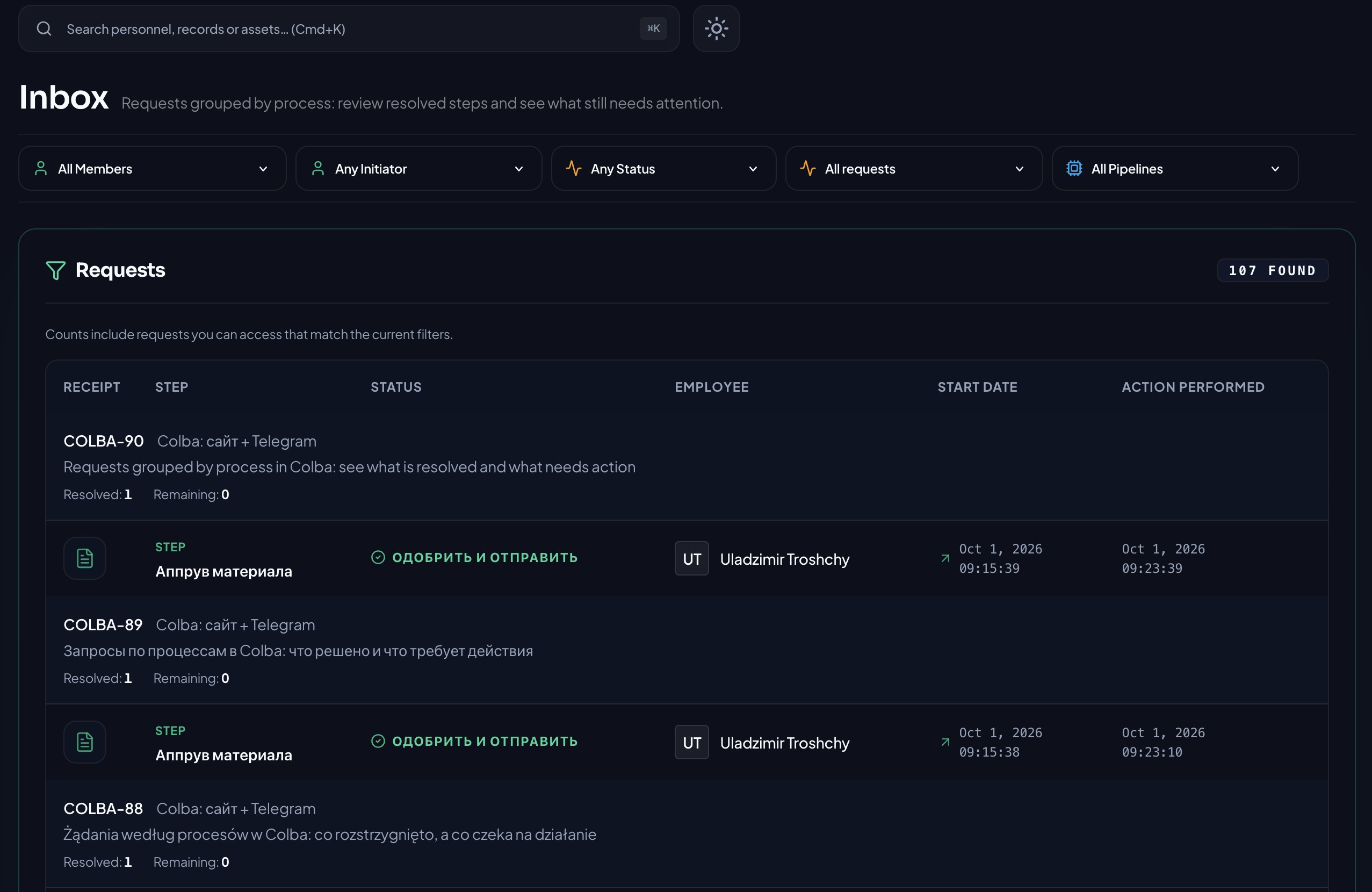
When several workflows run at once, individual notifications can be hard to follow. Which requests belong to the same document? What has already been handled, and where is your decision still needed? Colba's updated Requests view groups requests by individual process run. Each group has a summary, and requests waiting for your action move to the top.
Who benefits from the grouped view?
A team member can start with their own pending actions and review earlier decisions in the same group. An administrator can review requests across the organization and narrow the list by member, initiator, status, or workflow template. This is useful for document approvals where one document needs several checks and the team handles multiple approval processes at once.
Each group represents one process run. Two runs of the same template remain separate. The template name identifies the kind of work, while the process identifier distinguishes individual runs.
Read the group summary
- Resolved counts requests that have closed. This can include approved and rejected requests; check each request's status for its outcome.
- Remaining counts existing open requests. It does not predict every future step in the workflow.
- Action required counts requests waiting for the signed-in user's action: yours.
The counts cover requests you can access that match your current filters, including other pages of the group's history. Selecting a status or switching to “Action required” can therefore change the numbers. A resolved request does not establish that the whole process succeeded, and zero remaining requests does not rule out future tasks.
Your actions first, then the latest events
Groups with requests that need your action appear higher in the list. Within each group, those requests also come first. Later events appear above earlier ones within each category: a closed request uses its available completion time, while an open request uses its creation time.
Dates include a 24-hour timestamp with seconds in the format HH:mm:ss, such as 10:12:09, in your browser's timezone. This is the time an event occurred, not the duration of the work. An open request shows “In progress” under “Action performed”. A closed request without a usable timestamp shows “Time unavailable”.
The columns Receipt, Step, Status, Employee, Start date, and Action performed share one header across the table. The headings are displayed once rather than repeated for each process.
Find a request and check the result
- Open “Inbox” and its “Requests” list.
- Select “All requests” to review the context, or “Action required” to focus on your own pending actions.
- If needed, filter by initiator, status, or workflow template. “Action required” sets the pending status automatically, so manual status selection is disabled in that view.
- Find the relevant group and read its summary. Open the request, review its data, and make an available decision. Open the process when you need more context.
- After handling the request and refreshing the list, check its status, completion time, and summary using the same filters. Any subsequent request is created according to the workflow template's rules.
Example: three checks for one document
In the illustrative process DEMO-104, a team member can access three parallel review requests. Two have been approved and one awaits their decision. All events occur on the same day. In “All requests”, with no additional filters, the group shows Resolved: 2, Remaining: 1, and Action required: 1.
| Request | Status | Created | Action performed |
|---|---|---|---|
| Review C — action required | Pending | 10:01:00 | In progress |
| Review B | Approved | 09:59:00 | 10:12:09 |
| Review A | Approved | 09:58:00 | 10:05:42 |
The open request appears first even though the completed reviews happened after it was created. Among the closed requests, the later action appears higher. This is a teaching example, not a customer story or a ready-made template in the library.
Browse process groups and their history
The main pagination shows up to 20 process groups per page. A process with more than 20 requests has separate pagination for its history. That control changes the requests displayed within the group; its summary continues to cover the full accessible set matching your filters.
A synchronization indicator appears while a page loads. Wait for loading to finish before switching again. If loading fails, select “Retry”. If no results match, adjust the conditions or select “Clear filters”. Changing a filter returns the main list to its first page.
Why can't I see every request in a process?
A regular member sees requests assigned to them, including those already handled. An administrator can view the organization's requests and select a member. Grouping preserves these permissions: sharing a process does not automatically reveal other people's requests. Check the filters, assignments, and additional history pages together.
Start with “All requests”, find a familiar process, and compare the summary with its request statuses. Then switch to “Action required” and open the request waiting for your decision.